
Segments are smaller parts of a given show, and can each have their own web page (with an individual URL) and podcast episode.
This feature was designed for individually linking to and podcasting interviews from Juneau Afternoon shows. It may be useful in other contexts, but use with caution.
Create a new post (make sure it is using the Classic Editor, not the new Block Editor).
Warning: Adding segments to a post will delete any post content you’ve already added to it, so it’s strongly recommended to enable program segments before you do anything else with a post.
Enable segments
Find the Use Program Segments checkbox and check it.


Set program information
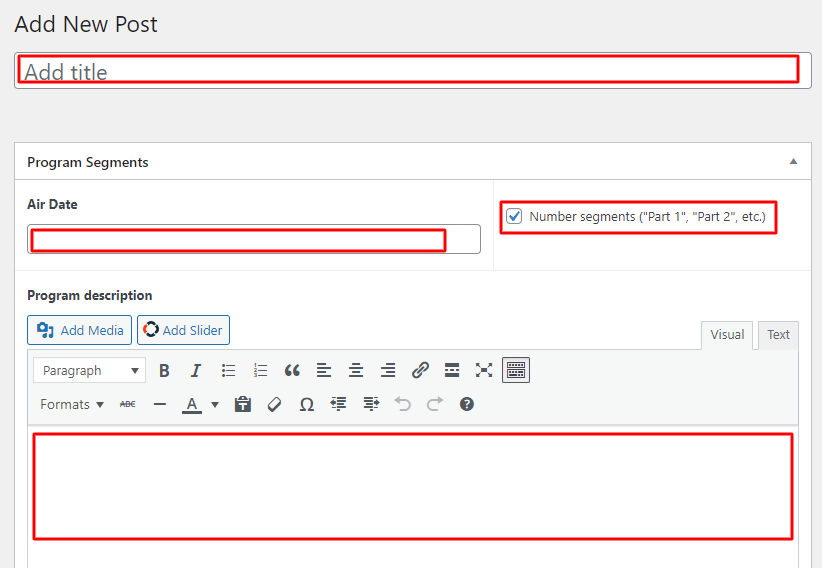
Add a title, air date, and (optionally) description for the show as a whole.
- Title and description work the same way as the title and content of a normal post
- The air date will be automatically appended to the title, so don’t include the date in the show’s title.
- Air date is typically the date the show first airs on the radio. It can be in the future (i.e., it is not the same as the post publish date).
- Choosing to number segments means segments will have a label (“Part 1”, “Part 2”, etc.) added at the beginning of their title.
- The part will not show everywhere, for example it is not shown on individual segment pages or the podcast feed.
- Segments are automatically numbered based on their order in the segment listing below.
- If this option is enabled, remember not to include a part number in any of the segment titles themselves, as it would be redundant.
- The description can include any media (e.g., images, audio) that a normal post would. For example, it could have the full program audio embedded as normal.
Add individual segments
Click the Add segment button

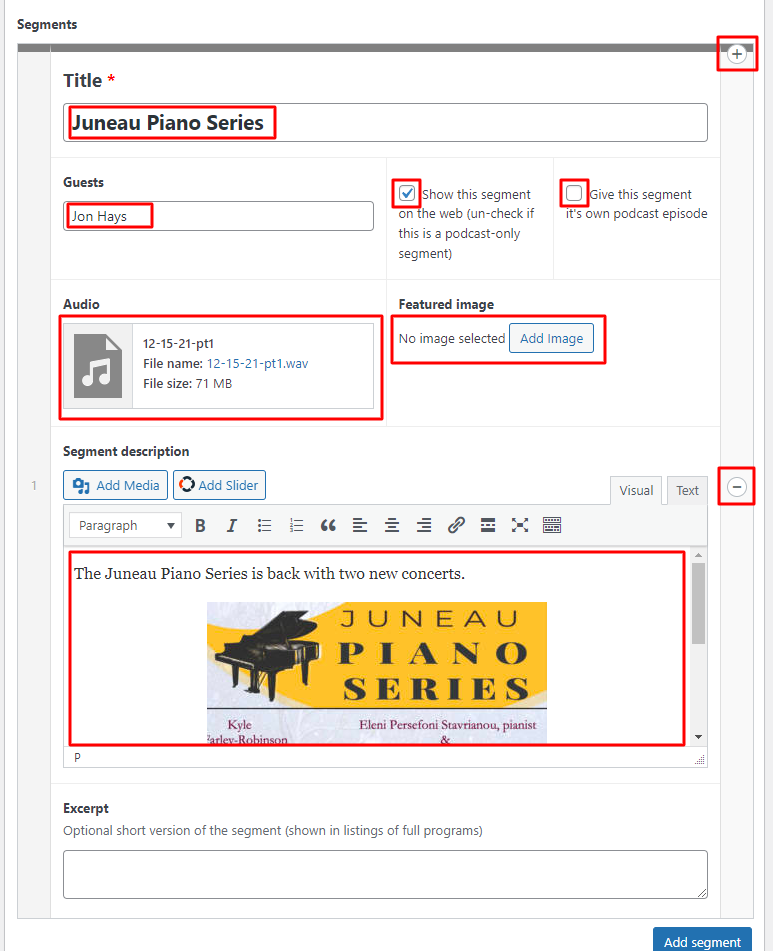
Fill in the relevant segment fields
- The air date of the full show will usually be shown, so be deliberate about including the date in the title only if necessary
- Guests will almost always be shown adjacent to the description, so it’s probably redundant to start the description with a list of guests
- Show this segment on the web will show it as part of the full episode’s post and give this segment its own URL you can directly link to. Really the only time to un-check this is if you only want this segment to be in the podcast.
- Give this segment its own podcast episode will create a podcast episode in the show’s feed.
- You can enter media like additional images in the Segment description field, but do not re-enter either the Featured image or the segment’s audio here. They will be displayed automatically where appropriate.
- It is possible, but a little tricky, to change the order of segments by clicking on the left-hand bar (when the cursor changes to a four-directional arrow) and dragging the segment above or below other segments in the list.
- You can delete a segment by clicking the minus icon (-) in the middle of the right bar
- You can add another segment above the current one by clicking the plus (+) icon in the upper right.
- You can add a segment at the end with the Add segment button.
A couple of caveats with the segment plugin:
- NPR – The NPR API plugin does not work with segments (so you can’t automatically send a post with segments to the NPR API)
- Preview – To preview a new post, you must save it as a draft to see segments. Previewing changes to published posts usually does not work.
- Post order – Posts are still sorted by the date they were published, not the air date. If this becomes an issue, we can look at solutions, but there is not a straightforward solution since segmented posts need to work with regular posts across the site (since under the hood, are just regular posts).