Our Gravity Forms plugin connects to MailChimp, and is currently the preferred way to create signup forms for mailing lists.
Any form built with Gravity Forms on our site can send data to MailChimp. There is a “MailChimp” section of the form settings where you can set it up.
Important: make sure you read all the way to end of this post to see how to properly send entries to MailChimp and assign them to lists.


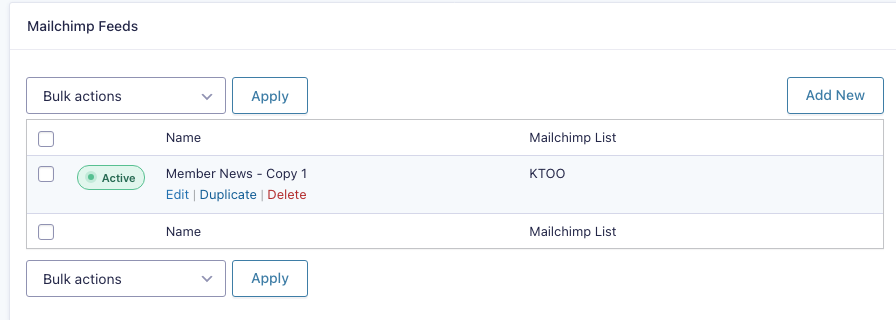
In the “MailChimp” settings, you’ll see a list of feeds, which are a channel for sending data from the form on WordPress to MailChimp.
Click “Add New” in the upper right or hover over an existing feed to “Edit” it
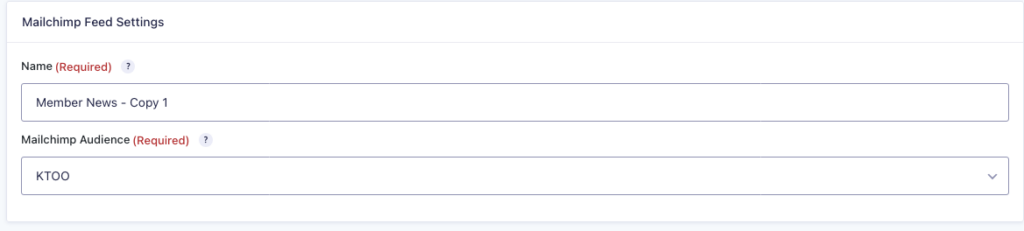
In the feed settings, give it an internal name and select an audience from MailChimp (as of this writing, always “KTOO”).
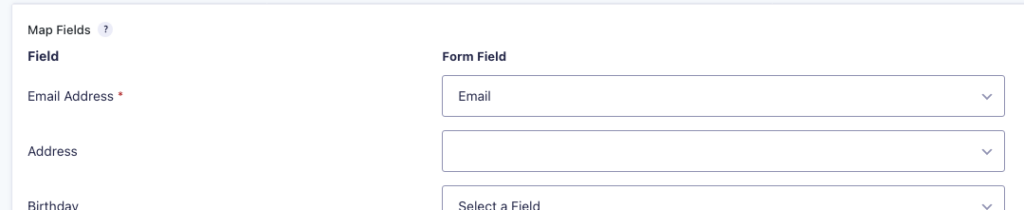
Select what MailChimp fields should get their values from which form fields. The critical one is “Email Address”, but there are lots of other fields.
Important: Make sure to do both of the following steps, “List” and “Conditional Logic”.
Select a list and decide when to send data to MailChimp. If the form has another purpose than signing up for emails, you should always use the “assign to group IF” option with a checkbox or other field to allow people to decide whether to be added to mailing lists.

Click “Double Opt-In” to send people an email confirming whether they want to sign up for the email list.
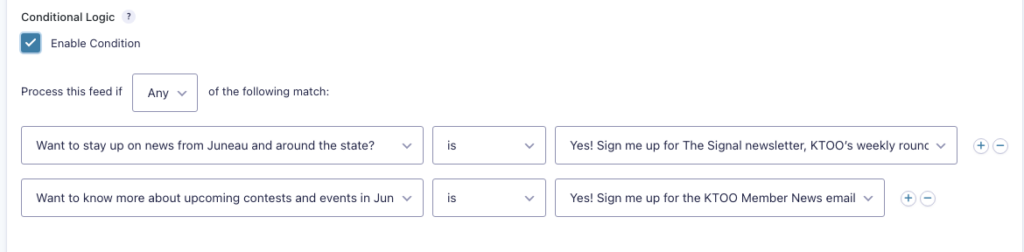
Important: If the form has another purpose than email signups, make sure to enable conditional logic. Typically you’ll choose the “Any” option and mirror the conditions you entered above for assigning to groups.
If you don’t properly use conditional logic, people may get an opt in confirmation even if they’ve opted NOT to sign up for a list!