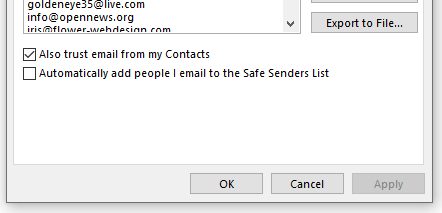
To reliably receive email notifications from the web site’s forms, you must add the from address for the notification to your Safe Senders list. By convention, we set all from addresses to submissions@ktoo.org (so everyone at KTOO can add that single email to their Safe Senders list once and have it work for all forms).
Adding an email to Safe Senders in the Outlook web interface
Important: At times, the Outlook web interface has been buggy with actually saving new safe senders, so after going through these steps be sure to confirm that the new address is actually in the list – for example, by reloading the web page with Outlook in it (ideally using Shift+refresh) or checking the list on the desktop application.
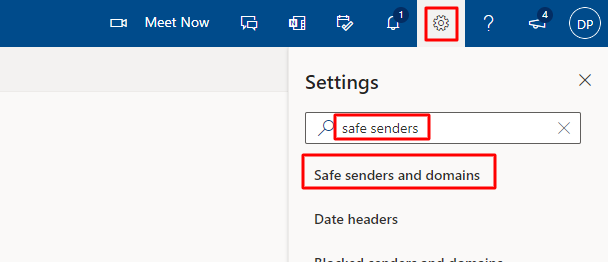
Click the gear icon in the upper right, type “safe senders” into the search box, and click on the “Safe Senders” option.
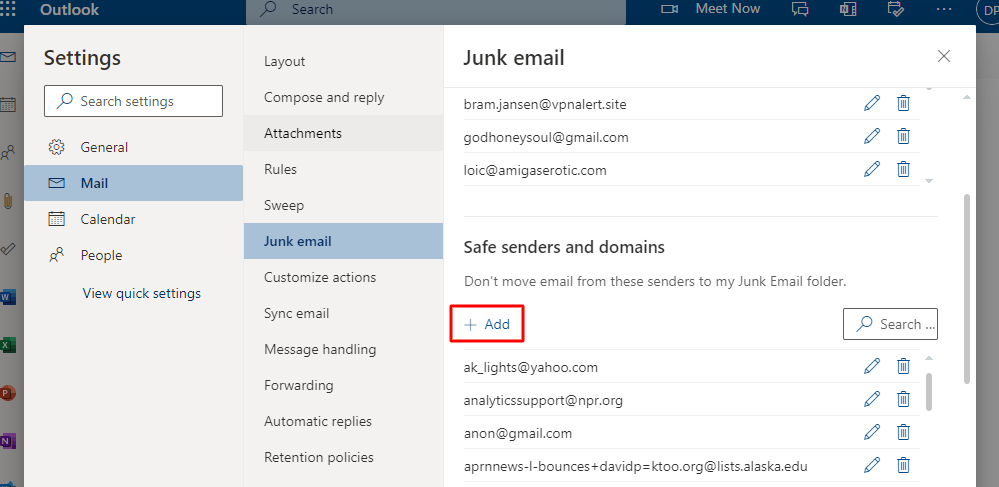
Find the Safe senders and domains section and click the Add button.
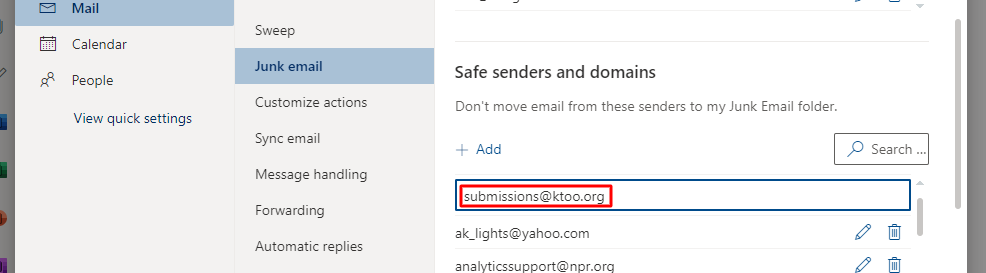
Type the sender email address (submissions@ktoo.org) into the text box and hit Enter.
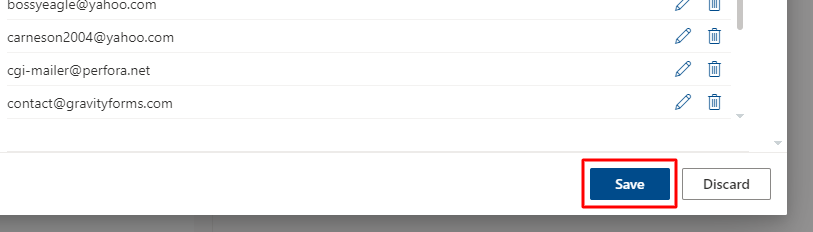
Click the Save button in the lower right.
Outlook Desktop software
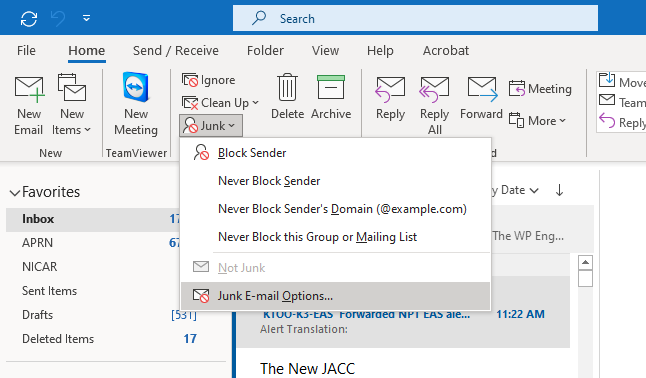
Click the Junk dropdown and then click on Junk E-mail Options (in the Home ribbon).
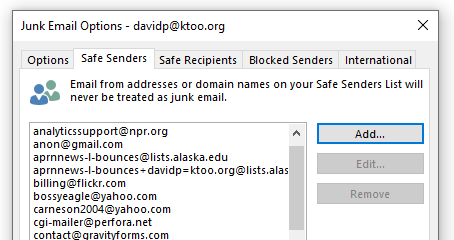
In the Safe Senders tab, click the Add button.
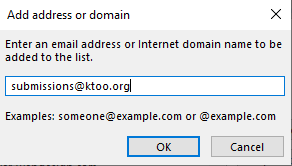
Enter the address in the window and click OK.
Click OK at the bottom of the main window.