
Users must be assigned to at least one organization/department to show up in user listings.
- Organizations are the affiliation for a byline (e.g., “KTOO” or “Alaska’s Energy Desk”)
- Departments are not shown in bylines, but structures the listing of users (e.g., “News & Public Affairs” or “Arts & Culture”)
Summary
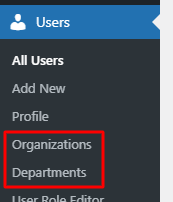
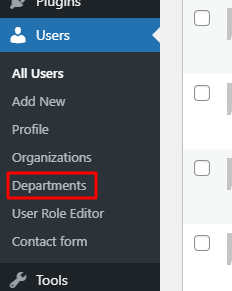
Use the Organizations and Departments under the Users menu to access lists of organizations and departments.
In these sections, you can add new items and edit existing items that will be available when editing individual user settings.
Adding/editing organizations
Click Organizations under the Users menu on the left
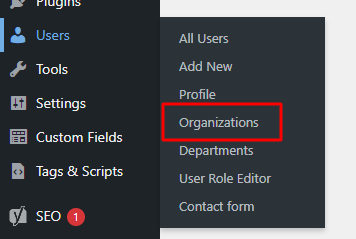
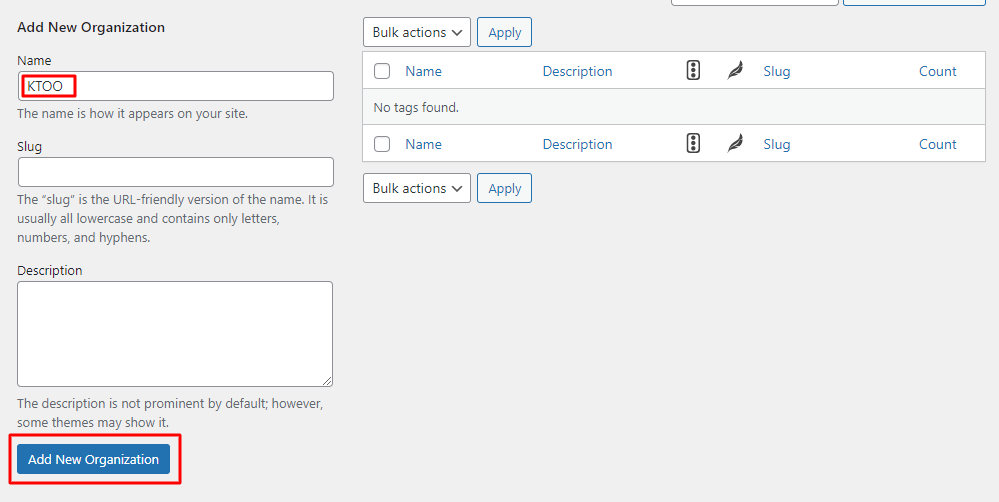
Adding an organization
Enter the organization name and click Add New Organization
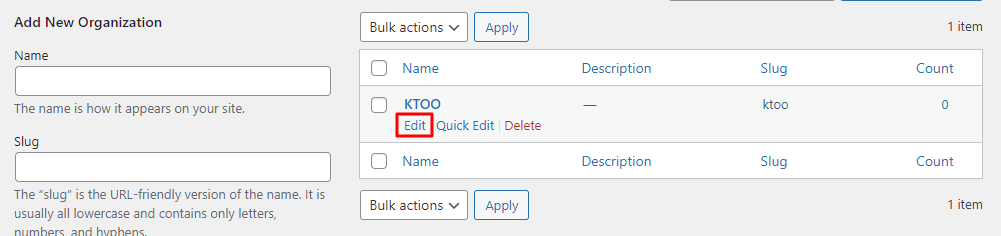
Editing an organization
Hover over an organization name and click the Edit link that appears below it
Change the name or other organization settings and click the Update button.
Adding/editing departments
Click Departments under the Users menu on the left
Add or edit departments as with organizations above.