To change the email where the notification is sent whenever the form is filled out, follow these instructions.
(You can also disable the notification if you don’t need it – you can always view or download all the entries from the site at once).
Important: We have a convention of form notifications being sent from submissions@ktoo.org – this makes it easier to add a single “from” address to the Outlook “safe senders” list and prevent notifications from going to spam.
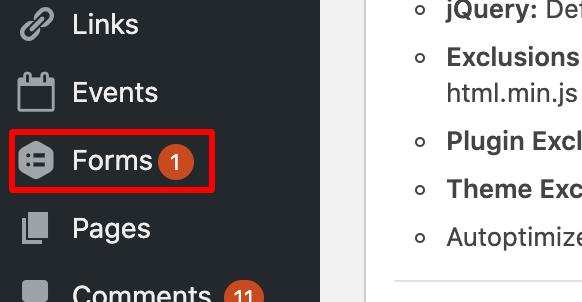
Click on “Forms” in the left-hand menu
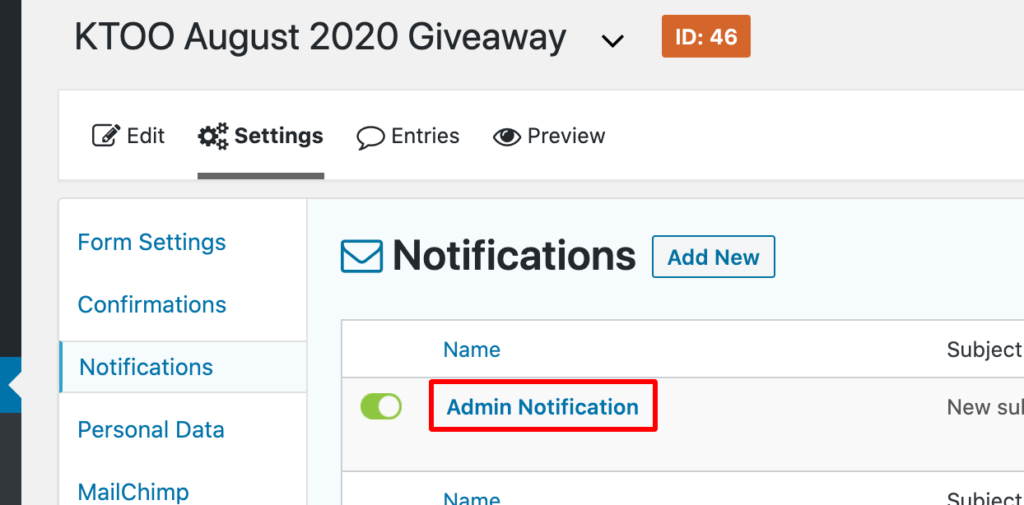
Find the form in the list and click its title

Hover over the “Settings” button and click “Notifications” in the dropdown

Click the title of the notification you want to edit (usually the default “Admin notification”
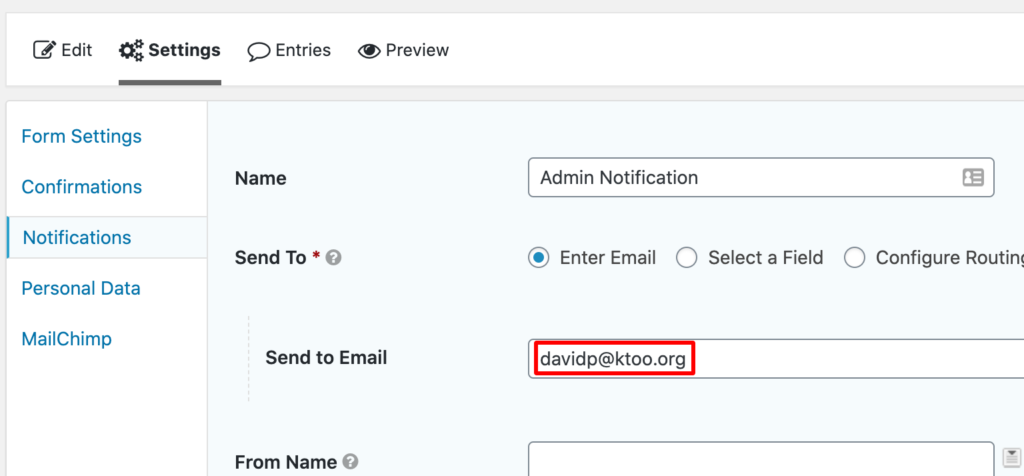
Enter an email address in the “Send to Email” field (you can enter more than one address by putting commas between them).
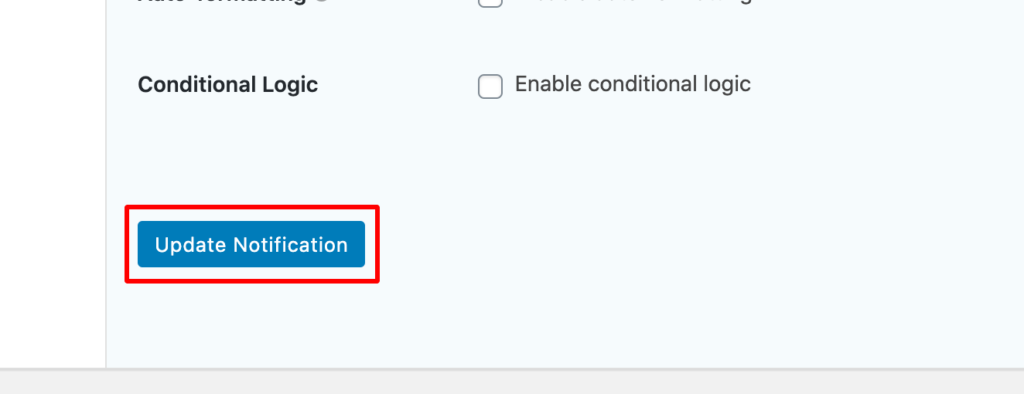
Click the “Update Notification” button at the bottom of the page